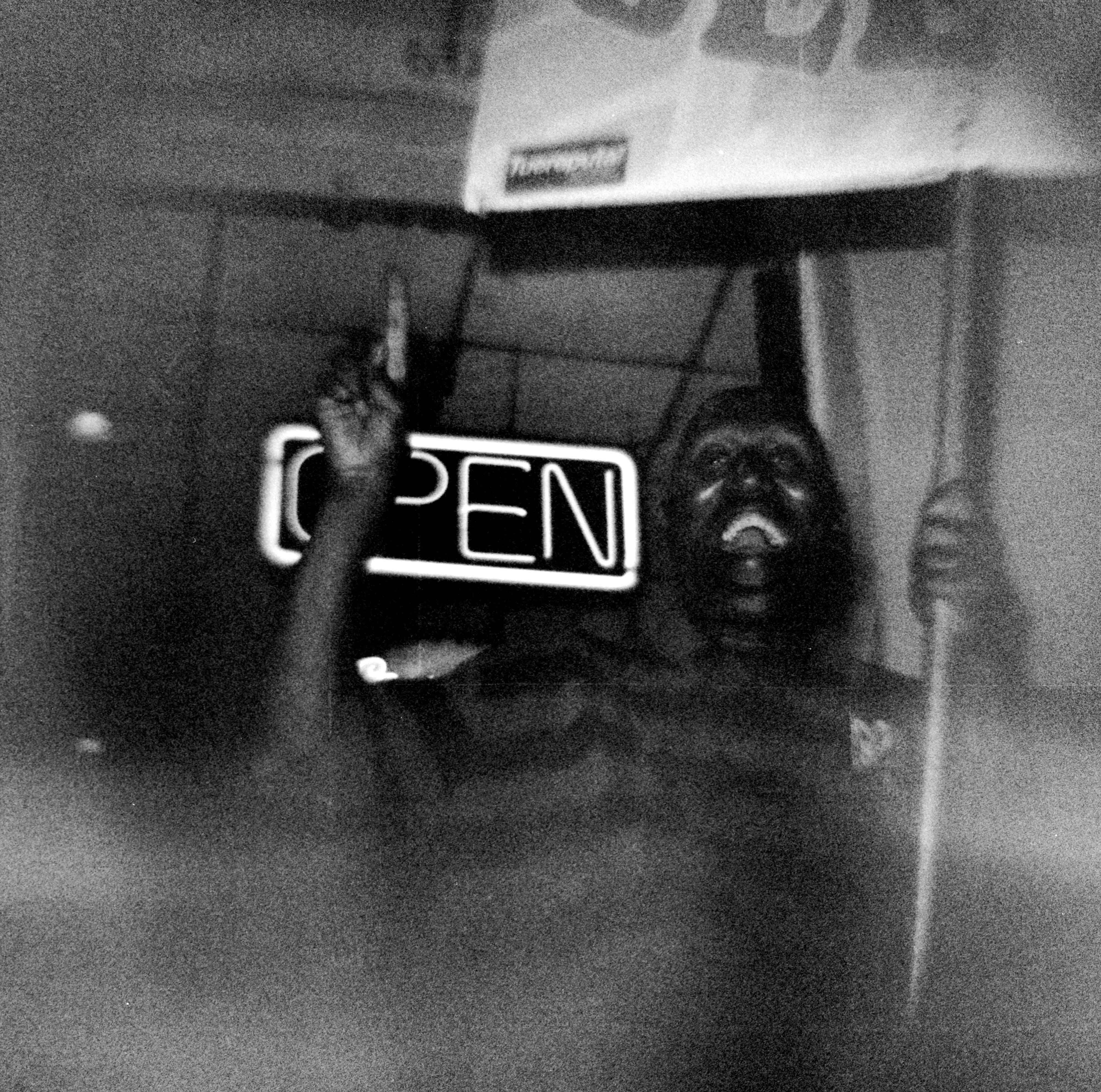
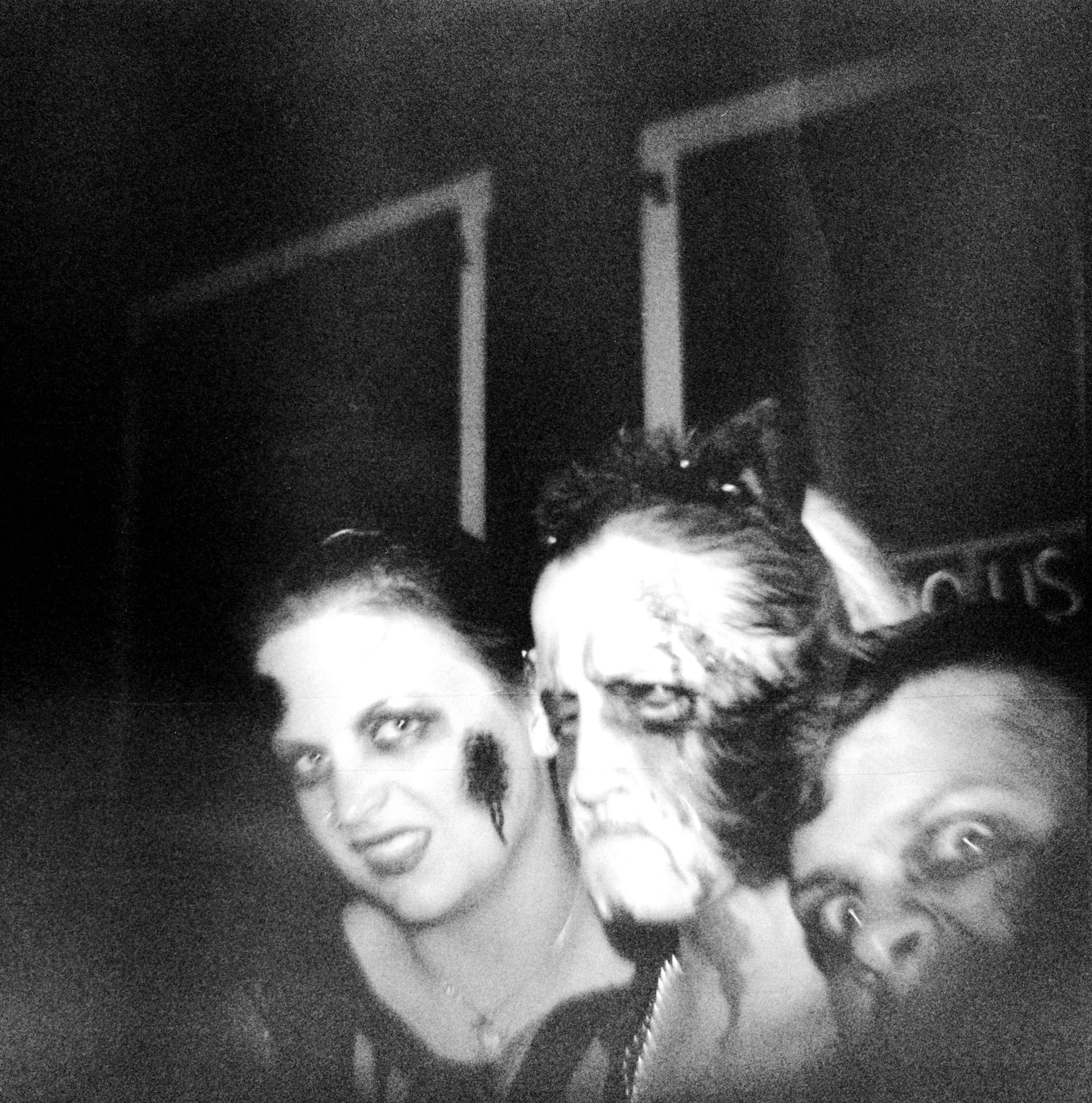
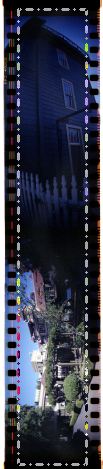
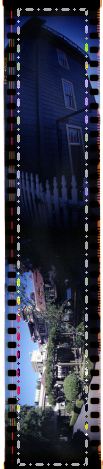
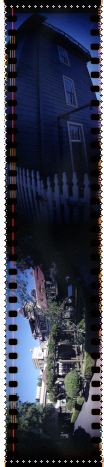
One of the neat things about taking pictures with 35mm film is that you can shoot a picture and include the film’s sprockets in a frame. It’s a nice effect and for the most part it adds a nice touch of character and personalization to your work.
The Cameras:
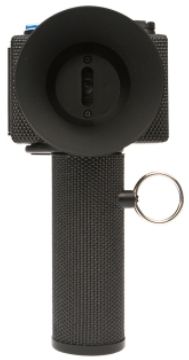
The set of Lomography brand cameras that I use for these “sprockety” pictures are the Diana F+ with it’s 35mm Back, the Spinner 360 and the Sprocket Rocket.
- The Diana F+‘s 35mm Back is an optional attachment that let’s you easily load, use and unload 35mm film into the camera. In order to get the sprockets into the picture, you need to install the largest of the included masks so that the image you’re capturing hits the entire area of the frame.

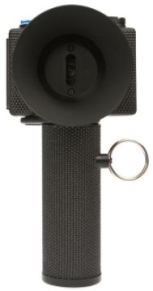
- The Sprocket Rocket is a wide angle, semi-panoramic camera that includes the sprockets in the picture by default.
 The Film:
Nothing special here. Any 35mm film will work.

The Scanning Mask:
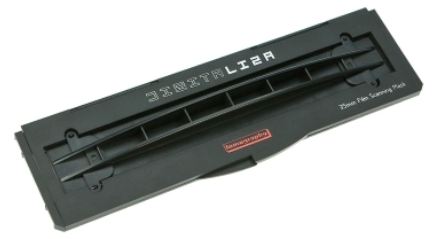
I use the Lomography DigiLIZA 135 Film Scanning Mask for the “sprockety” effect. It’s got the right dimensions and is pretty easy to use, especially sincet the Canon scanning mask that came with the CanoScan wasn’t designed wide enough to include the far edges of the film.

The Scanner:
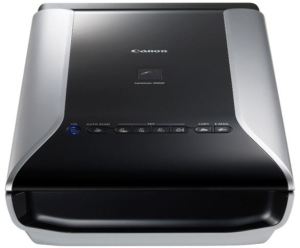
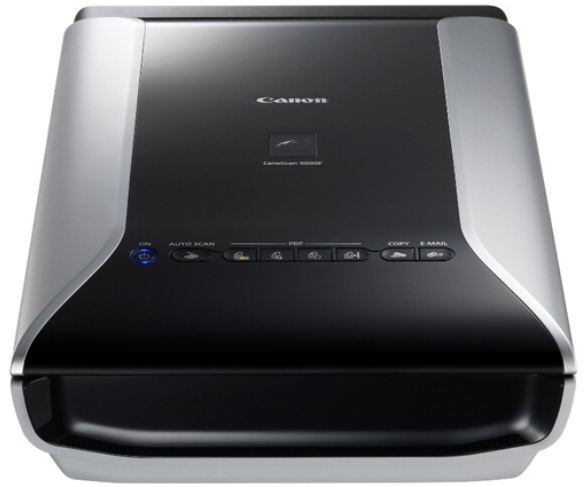
I use a CanoScan 9000F for all my pictures. I really didn’t try any other scanners because the CanoScan was highly recommended by the some of the camera shops I’ve visited. For the most part, I’m happy with it. Since I don’t pay for photo printing anymore and I scan all my developed film myself, I’ve definitely saved more than the $180 I paid for the scanner.
The Software:
I tried using the software that came with the CanoScan, but dumped it because there was only so much I could control. So, after some browsing around, I saw a lot of good stuff about VueScan. I downloaded an evaluation copy and ran it on my computer and it worked great. It uses a tabbed interface that let’s me do a bunch of stuff that I wasn’t able to with the Canon software. VueScan is definitely worth the $70 I eventually paid for it.
The Problem:
Early on, I started scanning pictures that didn’t have the sprocket in them. Scanning these pictures was quick and easy, but trouble started to brew as I tried to scan some of my first pictures off of the Diana F+. I would initially get a blue hue and no matter how many times I tried to fix this, the hue wouldn’t go away and the bright colors in the frame were not shining through.
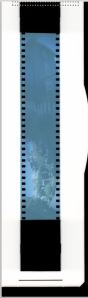
Now, if I set the scanning mask handles and excluded all the dark parts of the picture, I could get all my colors, but I would also lose my sprocket holes. That’s bad…
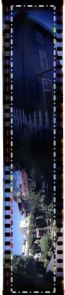
After some searching around the internet, I found some help. However, not many people were using VueScan, so I contacted their support. With the pieces I found online and the instructions from the VueScan tech, I was able to piece together a process that lets me scan my pictures with the sprockets holes and without the blue hue!
The Solution:
Here are the basic steps I use to scan my “sprockety” pictures. I’m sure the procedure can be streamlined at some point, but it still works as is…and that’s what counts.
1. After placing your masked film on your scanner and selecting the right settings, click the “Preview” button to get the initial scan. You’ll initially get the blue hued scan…and that’s ok.

2. Use the scanning mask handles and select the area of the picture between the sprockets and you’ll see the colors looking as you were expecting them to.

3. Put a check in the “Lock Exposure” check box and click the “Preview” button again.
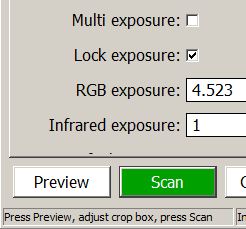
4. Put a check in the “Lock Film Base Color” and expand the mask handles to include the sprocket holes.
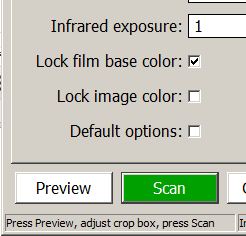

5. Press the “Scan” buttton to finally scan your colorful picture.
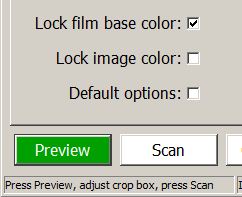
6. Finally, the scanned picture will end up in the default folder set in your VueScan settings.
The Conclusion:
So that’s how I scan my “sprockety” pictures. If I hear or find better ways of doing this, I’ll be sure to update this post. For now, this is just the best way to go…
Filed under: Analog Life, Film, Tip, Toy Camera, 35mm, 360 Spinner, CanoScan 9000F, diana f+, DigiLIZA, film, lock exposure, lock film base color, scan, Sprocket Rocket, sprockets, VueScan










 FilmSpooler